Test suite deletion, Advanced caching, iPhone devices, qTest integration
 |
Test suite deletion
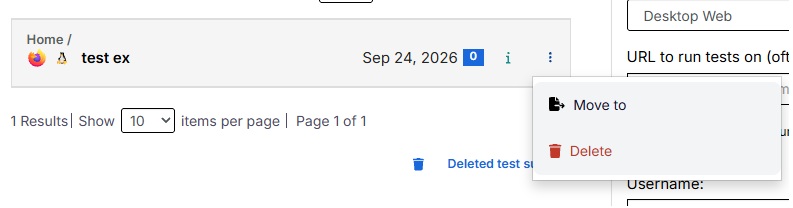
Users can now delete test suites directly from the Test Suites page. To delete a test suite, navigate to the Test Suites page, locate the suite you want to remove, click the three-dot menu on the right, and select Delete.
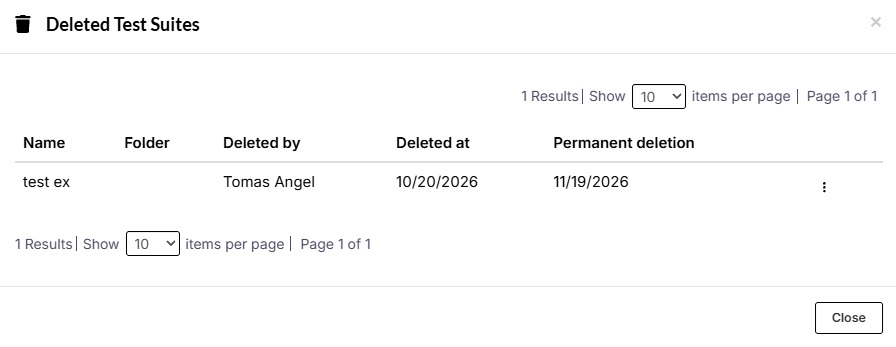
Deleted test suites will be moved to the Trash Bin, where you can view and manage all previously deleted suites. From there, you can either restore a test suite or permanently delete it.
Advanced Caching
We’ve introduced a new Advanced Caching setting designed to improve test execution speed.When enabled, this optimization speeds up test case steps that rely on reading page content, helping reduce overall execution time.
You can find this setting under the Speed Optimizations tab in your test suite settings.
Faster iPhone Devices
We’ve introduced new iPhone devices designed to significantly reduce startup times, allowing your mobile tests to begin executing faster. You can select these devices when creating a new test suite or by navigating to the settings of an existing suite.
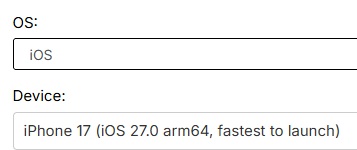
The new device option is: iPhone 17 – iOS 27.0 (arm64), labeled “Fastest to launch”. It will be set as default when creating a mobile test suite using iOS.
qTest integration
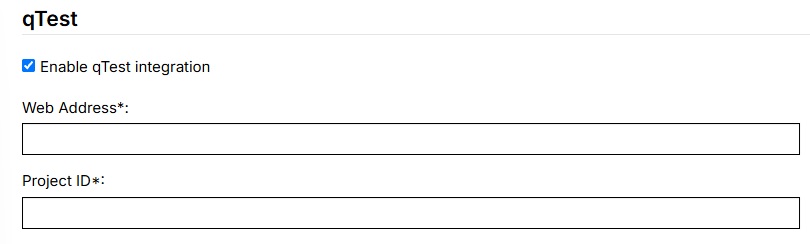
We’ve introduced support for qTest integration, allowing users to connect their testRigor test suites with qTest. To configure this integration, navigate to your test suite’s Settings, click on the Integrations tab, and scroll down to the qTest Integration section. From there, you can configure the integration to connect your test suite with qTest.