LibreOffice Testing
 |
LibreOffice is a free and open-source office productivity suite developed by The Document Foundation. It provides a full set of applications as a no-cost alternative to proprietary suites like Microsoft Office, focusing on user privacy and open standards.
This software is compatible with a wide range of document formats, including Microsoft Word, Excel, and PowerPoint files (.doc, .docx, .xls, .xlsx, .ppt, .pptx), while natively using the Open Document Format (ODF), an open international standard.
End-to-End Testing
End-to-end testing is a comprehensive approach that evaluates an entire system or application from the user’s perspective to ensure that it functions as expected. In the context of Plane. End-to-end testing involves testing the complete functionality of the website.
The primary goal of end-to-end testing is to simulate real-world user scenarios and validate that the system behaves correctly under various conditions. This testing type can help uncover issues that might not be detected during unit or integration testing.
testRigor
The primary advantages of testRigor include its simplicity, ease of maintenance, and scalability. Often the end user’s perspective on interacting with a system, which is crucial for creating end-to-end test cases, comes from non-technical individuals such as product owners, experienced manual testers, business analysts, or client-facing teams.
However, if test cases must be coded, this perspective may not be accurately translated due to limited engagement from a diverse audience. testRigor addresses this issue by enabling test cases to be written in plain English, facilitating easy collaboration, review, and editing of test scenarios. Additionally, testRigor supports Behavior-Driven Development (BDD) right out of the box. You can explore more benefits of using testRigor here.
Selenium
Selenium is a well-known open-source framework that enables you to automate many different testing scenarios from start to finish.
It also gives ways to confirm and check different elements and attributes on websites, helping users make sure the expected actions and information are correct. It supports various programming languages like Java, Python, C#, Ruby, many others.
However, Selenium has limitations, such as the need for a lot of work to maintain tests, challenges with testing across different platforms, and some instability from using locators based on elements like CSS and XPaths.
Playwright
Playwright is a node.js-based framework maintained by Microsoft that was created to meet end-to-end testing needs. It supports modern rendering engines, including Chromium, WebKit, and Firefox, and testing on Windows, Linux, and macOS, locally or on CI, headless or headed, with native mobile emulation of Google Chrome for Android and Mobile Safari. As with Selenium, Playwright also shares some of its shortcomings.
How to perform End-to-end testing with testRigor
In the following steps we’ll be showing how to create a test suite to start creating end to end test cases.
Step 1: Log in to your testRigor app with your credentials.
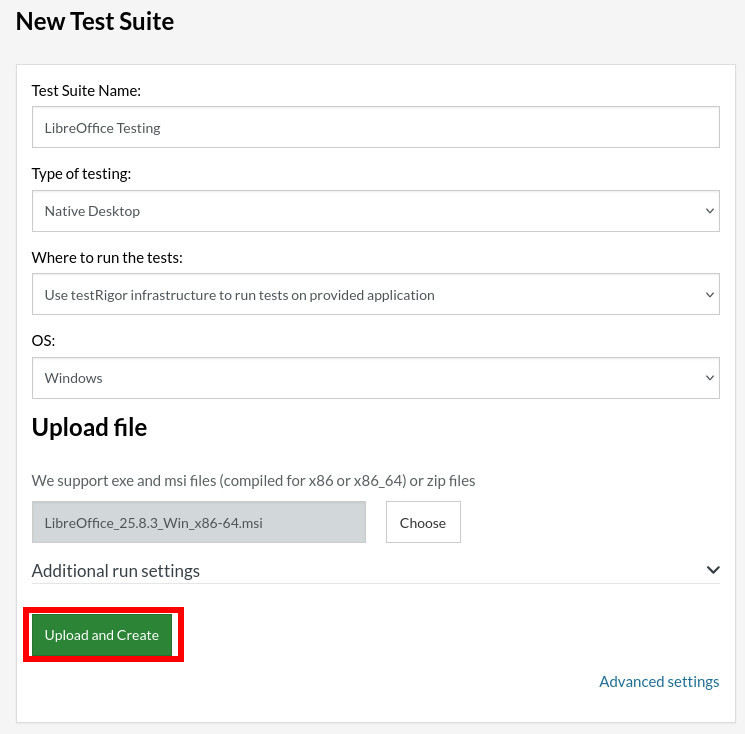
- Test Suite Name: Provide a relevant and self-explanatory name.
- Type of testing: Since LibreOffice is a desktop application select “Native Desktop”.
- Where to run the tests: Select the method on how to execute the test cases, you can choose between using the tR infrastructure or connecting to your own infrastructure using remote desktop.
- OS: Choose the OS on where you want to run the test cases.
Step 3: upload the executable file for the LibreOffice application (you can obtain it from here).
Step 4: Click Upload and create.
Step 5: To create a new custom test case yourself, click Add Test Case.

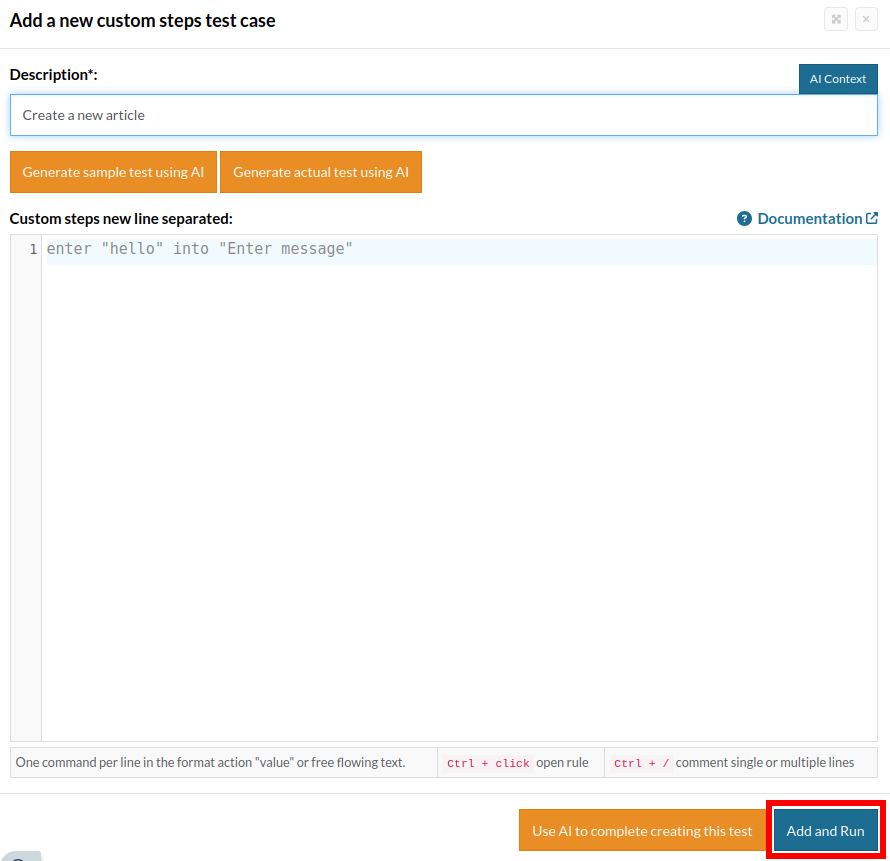
Step 6: Provide the test case Description and start adding the test steps, once finished, click “Add and Run”
Test Case: Create a new document then export it as a pdf file
Now that we know how to set up a test suite, let’s create a test case. We will add the test steps on the test case editor screen one by one.
install libreOffice
click "Writer"
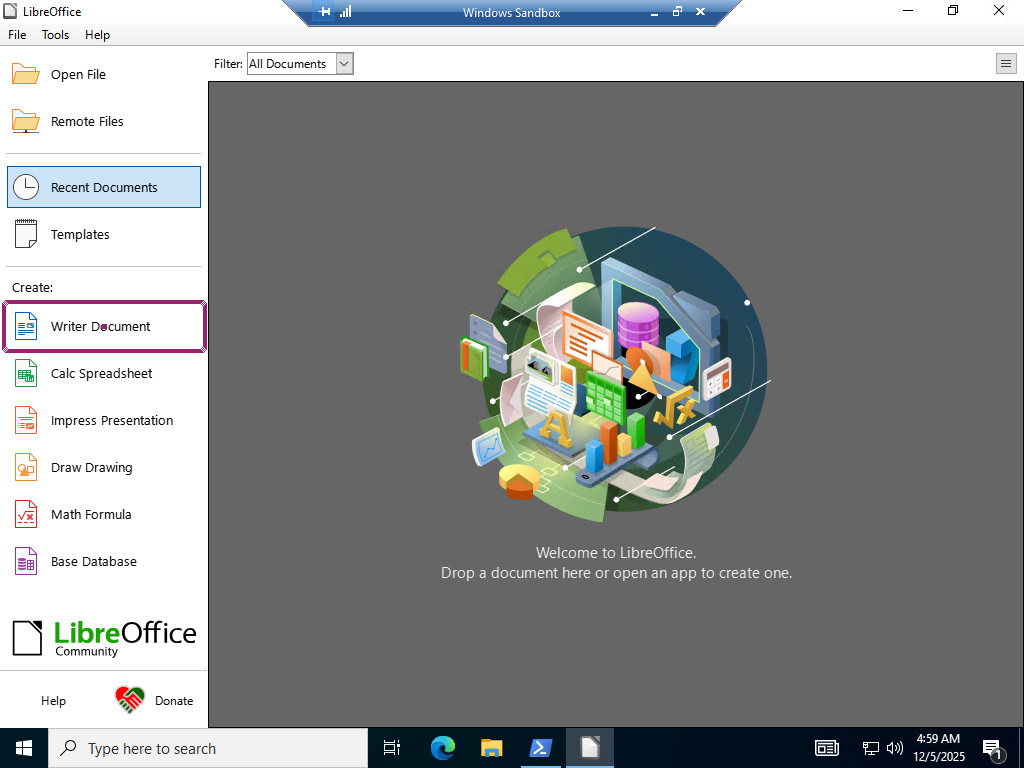
enter "Test text"
click "Export Directly"
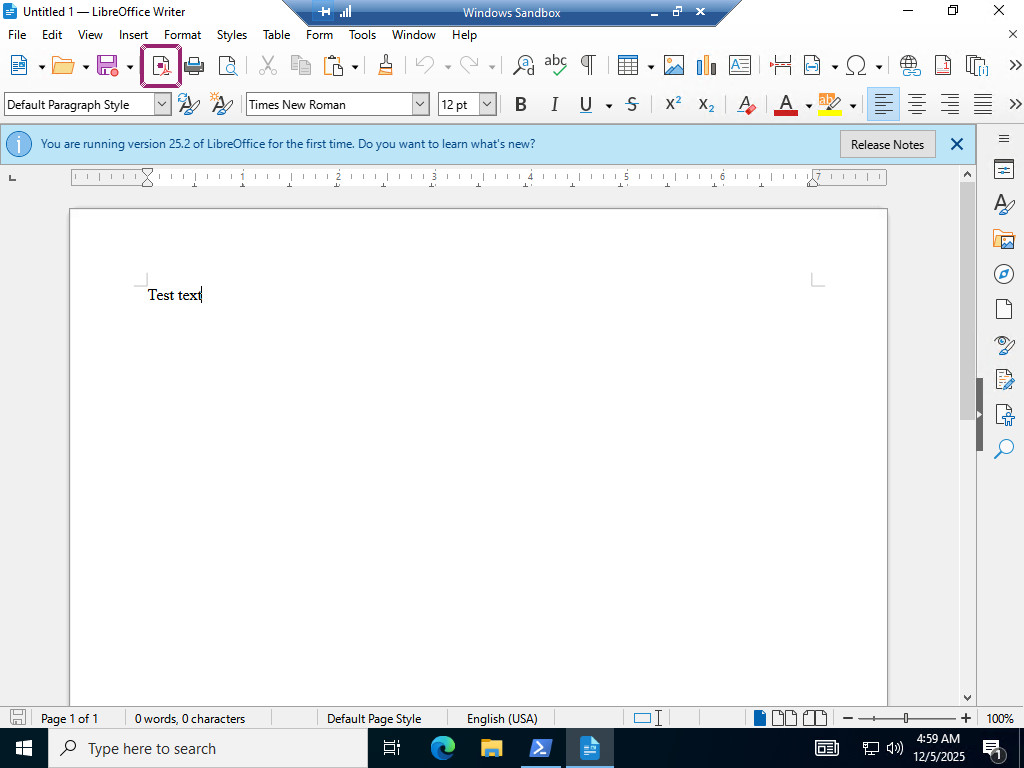
click "Desktop" above "Downloads"
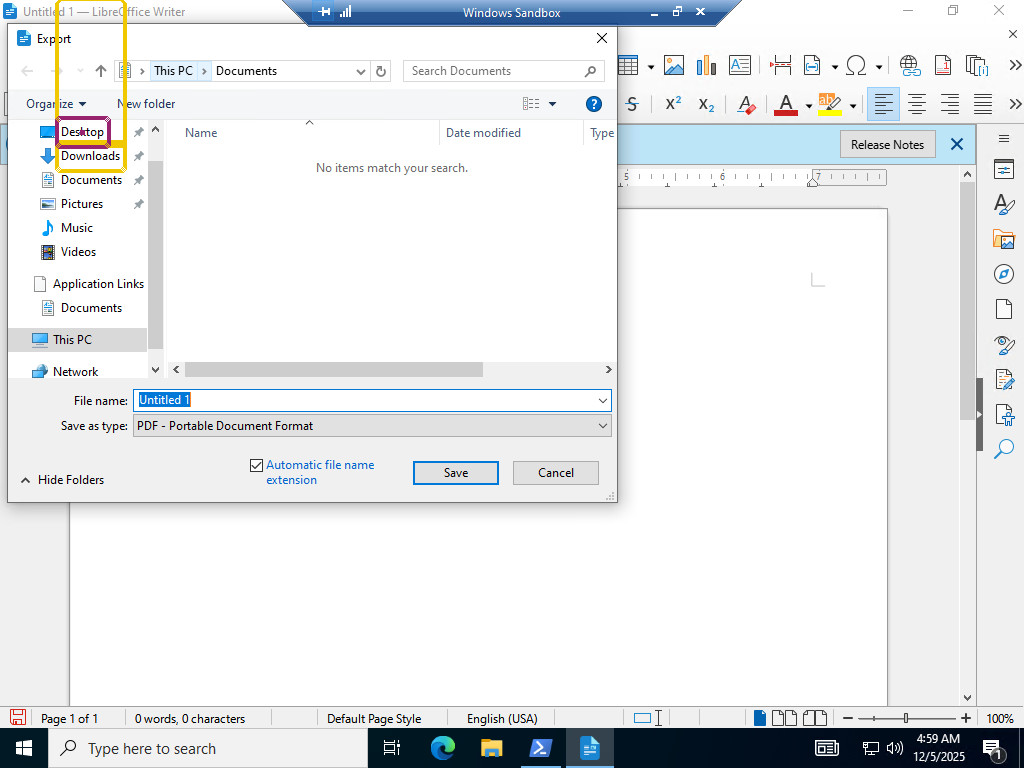
enter "Test.pdf" into "File name"
click "Save"
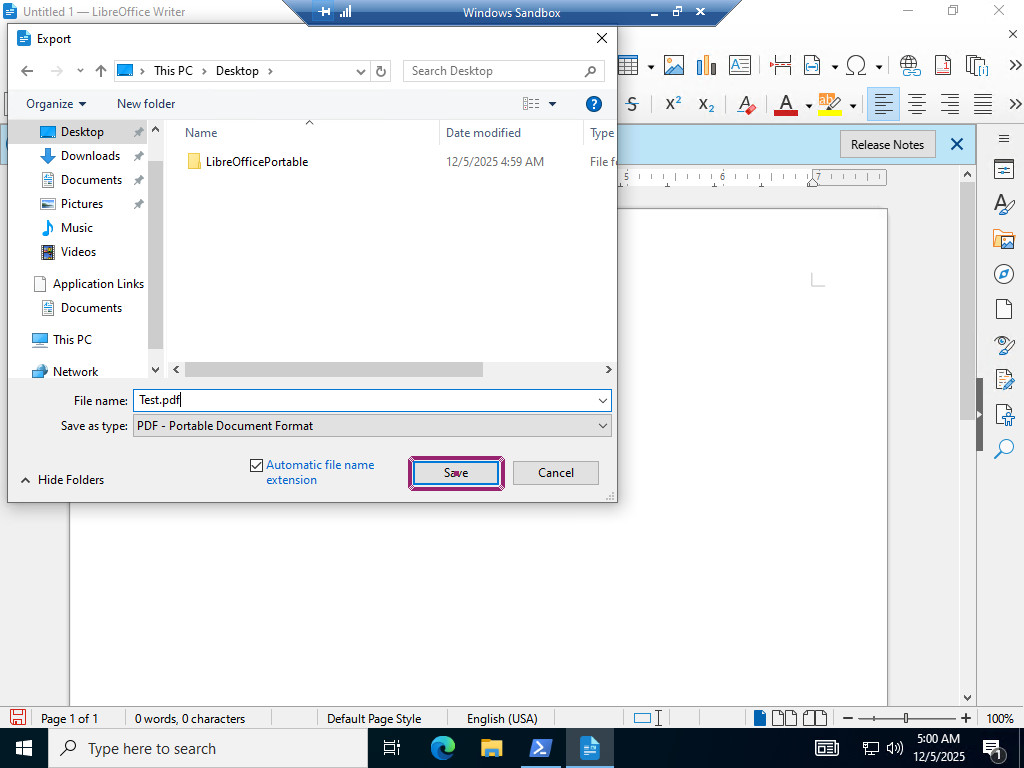
click "Minimize"
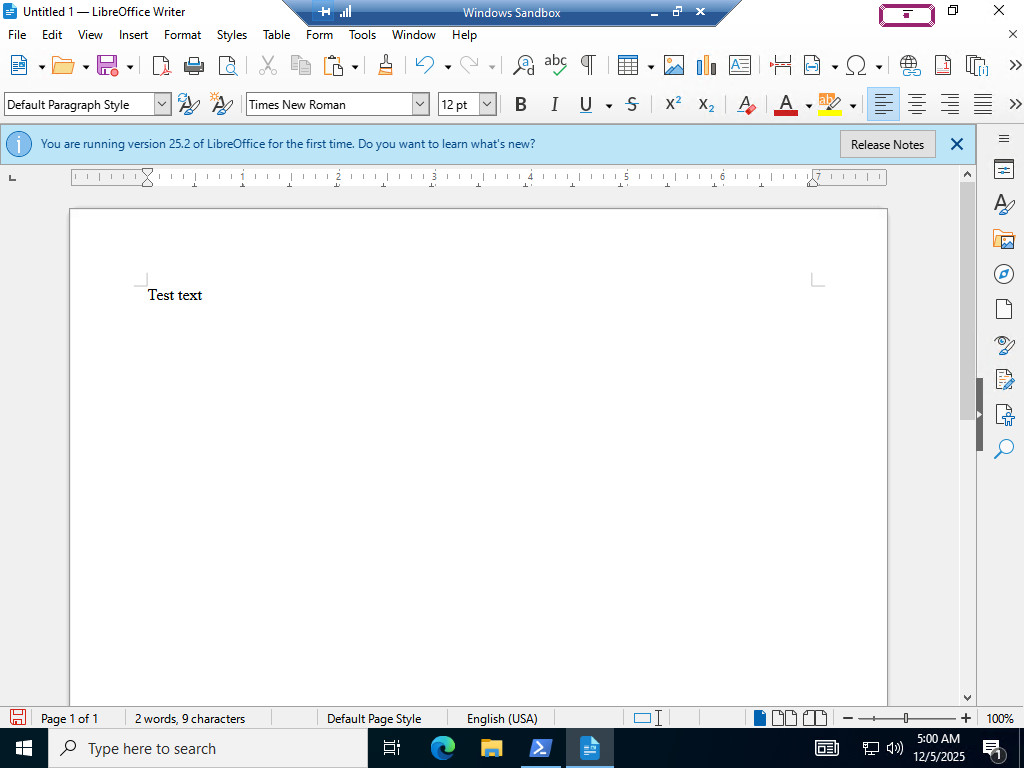
check that page contains "Test"
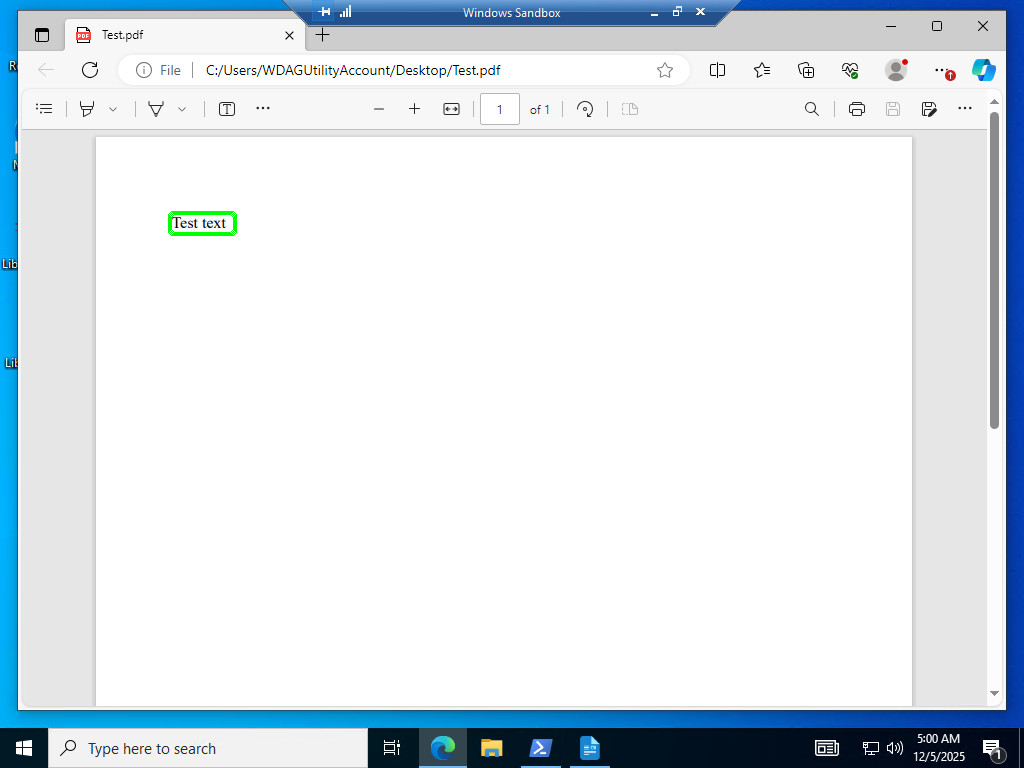
double click "Test"
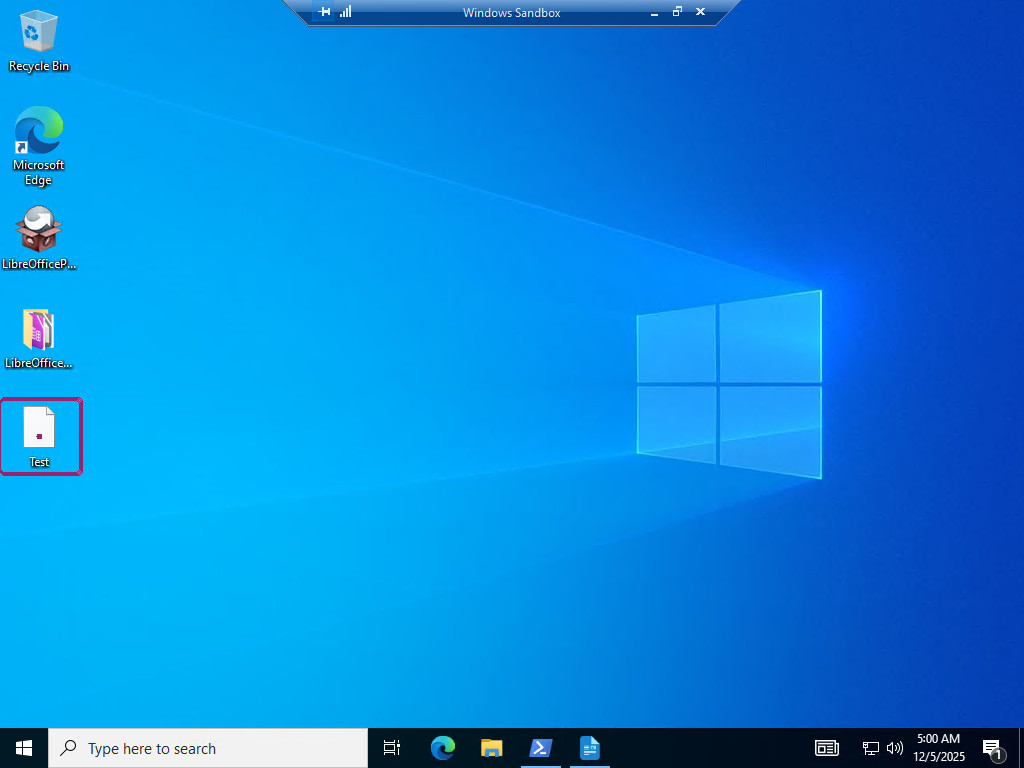
check that page contains "Test text" using OCR
Complete test case
install libreOffice
click "Writer"
enter "Test text"
click "Export Directly"
click "Desktop" above "Downloads"
enter "Test.pdf" into "File name"
click "Save"
click "Minimize"
check that page contains "Test"
double click "Test"
check that page contains "Test text" using OCR
Test cases to get you started with end-to-end testing
-
Creating a new document, changing the font style then validating the text is visible: this test cases verifies that that the text editing tools are functional, by creating a blank document then changing the size and font of a test string that was previously typed. Test case execution.
install libreOffice
click "Writer Document"
save "Hello" as "customText"
enter "Arial" into "Font"
type enter
enter saved value "customText"
check that page contains saved value "customText" roughly below "Form" using OCR
-
Create a new document, save it then validate it has been successfully created: we’re checking if the document is being created on its designated directory (in this case, the desktop). To achieve this we simply create a blank document, selecting the desktop as the destination folder then validating said file is visible on the desktop. Test case execution.
install libreOffice
click "Writer Document"
save "Test file" as "fileName"
click "File" on the left of "Edit"
click "Save as"
enter saved value "fileName"
click "Desktop" above "Downloads"
click "Save"
click "Minimize"
check that page contains saved value "fileName"
-
Create a document, save it then open it and check that the content is saved: In this instance we’re checking if the file contents are being correctly saved. Test case execution.
save "Test file" as "fileName"
install libreOffice
create and save document saved value "fileName" with content "Lorem ipsum"
click button "Close"
open libreOffice
click "Open file"
click "Desktop" above "Downloads"
click stored value "fileName"
click "Open" on the left of "Cancel"
check that page contains "Lorem ipsum" roughly below "Form" using OCR
-
Create a new document, save said document ,close libreOffice then verify the file shows up on recent documents: here we are checking if the “Recent documents” feature is working as intended. To do so we simply create and save a new file then reopen LibreOffice and check if the document is being displayed on the menu screen. Test case execution.
install libreOffice
create and save document "Custom document" with content "content"
click "Close"
open libreOffice
check that page contains "Custom document"
-
Check that page breaks start a new page: we are validating that the “Page break” feature starts a new page no matter where the action is performed. On this instance we click page break on a blank document then validate that a new page has been created. Test case execution.
install libreOffice
click "Writer"
click "Page Break"
click "Pages" using OCR
check that "Go to Page" contains "of 2"
-
Create a new document, verify that the find and replace feature works: to test the “find and replace feature” we first create a new document, write a word, click the find and replace button, change it with a different word then validate that the change was succesful. Test case execution.
install libreOffice
click "Writer"
enter "Bat"
click "Find and Replace"
enter "Bat" into "Find"
enter "Frog" into "Replace"
click "Replace All"
click "Close"
check that page roughly below "Edit" does not contain "Bat" using OCR
check that page roughly below "Edit" contains "Frog" using OCR
-
Create a new document then export it as a pdf file: to test the import feature we simply have to start a new document, export it then validate it was succesfully saved. Test case execution.
install libreOffice
click "Writer"
enter "Test text"
click "Export Directly"
click "Desktop" above "Downloads"
enter "Test.pdf" into "File name"
click "Save"
click "Minimize"
check that page contains "Test"
double click "Test"
check that page contains "Test text" using OCR
-
Validate that users can start up new documents from templates: in this instance we launch LibreOffice, create a new document, load up a new template and see if it loads correctly. Test case execution.
install libreOffice
click "Writer"
click "File" on the left of "Edit"
hover over "Templates"
click "Manage Templates"
click "Modern business"
click "Open"
click "OK"
check that page contains "Lorem Ipsum" roughly below "Edit" using OCR
-
Create a document, validate that the undo/redo feature works: in order to test this feature, we just create a blank document, type something in it then use the “undo” feature, validate the changes are applied then repeat that process with “redo”. Test case execution.
install libreOffice
click "Writer"
enter "Test"
click "Undo"
check that page does not contain "Test" roughly below "Edit" using OCR
click "Redo"
check that page does contains "Test" roughly below "Edit" using OCR
-
Open up a new document, check that the spelling detects misspelt words provides replacements for it: to test out the spelling functionality, we first create a blank document, type out a misspelt word, see that said word is being identified as an invalid word, apply a suggested replacement then validate that the changes were made to the document. Test case execution.
install libreOffice
click "Writer"
enter "Forq"
click "Spelling"
check that page contains "Forq" roughly below "Not in Dictionary" using OCR
click "Ford"
click "Correct"
check that page contains "The spellcheck is complete."
click "OK"
click "Close"
check that page contains "Ford" roughly below "Edit" using OCR
Reusable rules
-
create and save document “fileName” with content “content”: creates a new document, writes text given with the parameter “content” and saves it with the name provided on the parameter “fileName”.
click "Writer Document"
enter saved value "content"
click "File" on the left of "Edit"
click "Save as"
enter saved value "fileName"
click "Desktop" above "Downloads"
click "Save"
-
open libreOffice: opens the LibreOffice application. Requires to be focused on the desktop.
double click "LibreOffice"
double click 2nd "libreOfficePortable" below "Name"
click "Minimize"
click "Minimize"
click "File"
click "Close"
click "LibreOffice"
-
install libreOffice: performs the LibreOffice installation process and launches it.
click "Ok"
click "Next"
click "Next"
click "Install"
wait up to 5 minutes until page contains "Completing LibreOffice Portable Setup"
enter 1 into checkbox "Run LibreOffice Portable"
click button "Finish"
check that page contains "Open File"
click "Maximize"
| Achieve More Than 90% Test Automation | |
| Step by Step Walkthroughs and Help | |
| 14 Day Free Trial, Cancel Anytime |